LLIMAGER UNIVERSAL
One Ecosystem. Multi-Platform Forensic Imaging. Blockchain-Anchored Image Metadata & Immutable Verification.
The complete digital investigation platform unifying Mac, Windows, and Linux forensics imaging with optional blockchain anchored image metadata, validation and centralized portal management.
Centralized Portal Management: Command center for image tracking/management & seamless license administration.
Patent-Pending Governance: LLSmartVerify Portal and public blockchain verification.
Mobile QR Anchoring: Privacy-preserving salted hashes sealed on smart contracts.
Pre-Imaging Decryption: Native BitLocker unlocking prior to capture.
Universal Platform Overview
Eliminate field clutter and platform barriers. LLIMAGER UNIVERSAL delivers unassailable evidence collection across all target environments from a single drive.
✓ macOS Engine: Native live imaging, Full File System (FFS) collection, and Target Disk Mode across Apple Silicon and Intel systems.
✓ Windows & Linux Engine: Live executables and bootable dead-box utilities with native, pre-imaging BitLocker unlocking.
✓ LLSmartVerify Portal: Cloud-based command center for advanced image tracking, enterprise management, and public hash anchoring.
✓ LLIMAGER Mobile Companion App (iOS/Android): Instant QR code scanning to anchor logs directly to the public blockchain ledger.
Key Modules & Capabilities
1. Windows & Linux Engine
✓ Pre-Imaging BitLocker Unlocking: Unlock encrypted volumes using recovery keys or passwords to generate fully decrypted physical and logical images.
✓ Dual-Mode Execution: Run as a zero-installation Windows executable or boot directly from the USB drive for dead-box acquisitions.
✓ Complete Coverage: Acquire raw DD, E01, or segmented images with strict cryptographic hash logs.
2. LLIMAGER Mobile Companion App
✓ Instant QR Anchoring: Scan acquisition log QR codes to instantly sync metadata and hashes to the public blockchain and verification portal.
✓ Audit & Chain of Custody: Access drive serial numbers, examiner notes, and logs synced directly with your account.
3. LLSmartVerify Portal & Management Environment
✓ Image Tracking & Management: Monitor acquisition telemetry, review global activity feeds, and audit completed imaging jobs across your organization from a single dashboard.
✓ Centralized License Management: Easily track expiration timelines, assign or revoke seat allocations dynamically, and execute zero-downtime license renewals.
✓ Role-Based Access Control (RBAC): Manage permissions across accounts, lab directors, and field examiners with isolated case data and custom access boundaries.
✓ Courtroom-Ready Proof: Automatically anchor SHA-256 hashes and timestamps to an immutable public ledger, allowing independent, third-party verification without proprietary software.
Built for Any Team Size
✓ Independent Consultants: Handle any workstation—Mac, Windows, or Linux—using a single high-performance field drive with BitLocker decryption and QR ledger anchoring.
✓ Enterprise, e-Discovery & Law Enforcement: Standardize field workflows across hundreds of examiners with robust image tracking, centralized license administration, and unified audit logs.
Standardize your field collection workflows across dozens or hundreds of examiners with centralized portal governance, automated license expiration tracking, mobile companion QR anchoring, unified audit logs, and scalable deployment.
From Specialized Tooling to Universal Verification.
Engineered by digital forensics practitioners, LLIMAGER evolved from a specialized macOS collection utility into a unified, cross-platform field acquisition and verification ecosystem. Built to eliminate platform fragmentation, accelerate field collections, and deliver unassailable courtroom proof.
Our Origin: The Field-First Reality
Born from Real-World Casework & Expert Testimony
In digital forensics and e-Discovery, field examiners historically faced a fragmented landscape: carrying one tool for live macOS Full File System (FFS) extractions, another for Windows/Linux dead-box imaging, and relying on static text logs to document chain of custody.
LLIMAGER was created to solve these exact operational friction points. Beginning with native Apple Silicon and Intel Mac acquisitions, we built an engine that prioritized speed, minimal host footprint, and strict adherence to evidence integrity.
As modern environments grew more complex—requiring rapid live endpoint collections, dead-box acquisitions across diverse PC hardware, and pre-imaging BitLocker decryption—the need for a single, hardware-bound solution became clear.
LLIMAGERUNIVERSAL represents the direct evolution of that vision: combining our proven macOS acquisition engine, a powerful live and bootable Windows/Linux engine, and seamless mobile field telemetry into a single USB field drive.
The LLSmartVerify Framework: Courtroom-Ready Proof
Beyond Local Logs: Immutable Blockchain Anchoring
A forensic image is only as valuable as the cryptographic integrity backing it. Traditional text-based acquisition logs are vulnerable to spoliation claims, backdating accusations, and defense challenges during litigation.
To solve this, we engineered the patent-pending LLSmartVerify verification framework. Integrated across the entire LLIMAGER ecosystem, LLSmartVerify transforms log management into decentralized, mathematical proof:
- Instant Cryptographic Anchoring: The moment an acquisition completes, cryptographic hashes (SHA-256) and examiner metadata are anchored directly to an immutable public blockchain ledger.
- Mobile Field Anchoring: Using the LLIMAGER Mobile Companion App, examiners can scan target log QR codes in real time to post cryptographic receipts directly to the public ledger and the LLSmartVerify Portal.
- Independent Verification: Anyone—from lab directors to opposing counsel—can independently verify the authenticity and timestamp of an acquisition log without needing proprietary software.
Core Operating Principles
Built for Sole Practitioners & Enterprise Fleets
Whether responding to an urgent incident as a solo consultant or standardizing collection workflows across a global e-Discovery team, LLIMAGER UNIVERSAL operates under three non-negotiable principles:
- Zero-Footprint Field Execution: Hardware-bound USB drive deployment ensuring zero installation or residual artifacts on live target host operating systems.
- Complete Operational Visibility: Centralized performance telemetry, automated license expiration governance, and multi-tenant Role-Based Access Control (RBAC) via the LLSmartVerify Portal.
- Courtroom Admissibility: Every feature—from pre-imaging BitLocker volume decryption to public ledger hash anchoring—is designed to withstand aggressive cross-examination and strict judicial scrutiny.
Mac & Windows Imaging
FEATURES
MAC
Blazing Fast "Live" Mac Imaging
Full File System Mac Imaging
Custom Targeted Mac Imaging
Streamlined Targeted Imaging of Mac User Profiles
Time Machine Based Imaging
Supports Intel, Silicon, T2 Chips, and macOS-native File Systems.
Full Acquisition Log
SHA-2 Hashed DMG Images
Unlimited Technical Support
Optionally Collect macOS sysdiagnose
Send Images to Cloud Storage Providers (AWS, Google Cloud or Azure)
Direct integration with LLSmartVerify for instant blockchain hash anchoring and QR mobile receipts.
Signed PDF Acquisition Logs
Accessibility & Compliance (VPAT)
WINDOWS
Live Windows endpoint collection & bootable dead-box imaging across universal x86/x64 hardware.
In-line BitLocker & BitLocker To Go pre-imaging volume decryption via recovery keys or passwords.
Outputs industry-standard E01 (Expert Witness Format) and raw DD physical/logical images.
Accesses locked databases and system files using Volume Shadow Copy Service (VSS) integration.
Hardware-bound USB drive supporting zero-footprint live execution and direct bootable x86 imaging.
Direct integration with LLSmartVerify for instant blockchain hash anchoring and QR mobile receipts.
Custom Targeted Imaging
Signed PDF Acquisition Logs
Accessibility & Compliance (VPAT) (early 2027)
Trial
Ready to experience the power of LLIMAGER UNIVERSAL Mac & Windows forensic imaging with our 14-day trial?
LLIMAGER UNIVERSAL Trial Functionality and Use
The LLIMAGER UNIVERSAL 14-Day Trial offers full feature access to allow users to thoroughly evaluate the advanced imaging capabilities.
LIMITATION: Forensic Integrity Warning
Please be advised that all disk images created using the LLIMAGER UNIVERSAL Trial version contain embedded digital watermarks in the form of small, randomly generated text files.
What this means: The trial image will not have the same hash value as the source media. Therefore, images created with the trial software cannot be claimed as an exact, forensically sound duplicate and are invalid for use in any official, legal, or evidentiary capacity.
The trial is strictly for feature evaluation and testing purposes. To create forensically sound, verifiable exact copies, a full, licensed version of LLIMAGER UNIVERSAL is required.
See steps below:
- STEP 1: Fill out form and click Download Trial button.
- STEP 2: Download LLIMAGER UNIVERSAL setup installer ZIP and unzip to a Windows computer.
- STEP 3: Upon receipt of the trial license file:
- Run the LLIMAGER UNIVERSAL Installer and the automated wizard will entirely reformat and provision your drive — setting up all boot partitions and pre-installing both LLIMAGER (Mac) and LLIMAGERW (Windows/Linux) and simply point to the license file when prompted. See LLIMAGER UNIVERSAL manual, and refer to the "Trial Versions" section in "Getting Started with LLIMAGER"
THE LICENSE KEY FILE WILL TYPICALLY BE SENT WITHIN 2 HOURS DURING NORMAL EASTERN TIME ZONE BUSINESS HOURS.
NOTE: If you selected to trial LLSmartVerify, keep an eye on your inbox for your official onboarding invitation to register on the portal (llsmartverify.llimager.com). Completing your registration will activate your centralized dashboard to manage active drive trial license, monitor field telemetry, and leverage seamless, immutable blockchain verification for all your acquisitions.
BUY
LLIMAGER Legacy & UNIVERSAL (Mac & Windows)
1. Clone (restore) fails with "Volume replication failed – Operation not permitted". What next?
The imaging process authenticates your admin password and begins, showing "Validating target… done / Validating source… done," but then stops with:
Why this happens
In rare cases — most often when the administrator password contains special characters (such as = + # $ @ ! & *) — macOS security policy can deny the clone step even though your password was accepted. The disk-cloning stage requires full access to the system volume, and under certain conditions the operating system withholds that access at the moment replication begins. This is a system-permission issue, not a problem with the data being imaged.
How to resolve it — try these in order:
1 Confirm Full Disk Access is granted to the app.
Open System Settings → Privacy & Security → Full Disk Access, and make sure this application is listed and enabled. This is required for cloning the system volume.
2 Re-register the app's Full Disk Access.
If access was already granted but the error persists, remove the app from the Full Disk Access list (select it and click the minus button), then add it back and enable it. Quit and reopen the app fully afterward, so the new permission takes effect.
3 Use a different administrator account, if available.
If another admin account exists whose password contains only letters and numbers, run the imaging process signed in with that account.
4 As a last resort, temporarily simplify the admin password.
Change the administrator password to one containing only letters and numbers (uppercase, lowercase, and digits, in any combination — no symbols). Run the imaging process to completion, then change the password back to its original value once the image is finished.
2. The application "LLIMAGER" can't be opened.
TO RESOLVE:
USER-SUPPLIED SSD/HDD VERSION:
1) PROPERLY SETUP YOUR USB SSD/HDD: FORMAT TWO PARTITIONS NAMED, "llimager" and "llidata" IN exFAT. NOTE: THE "llimager" PARTITION IS FOR THE EXECUTABLE, AND CAN BE VERY SMALL (~2-10GB), WHILE THE REMAINING SPACE SHOULD BE USED FOR THE "llidata" PARTITION TO STORE IMAGES. MAKE SURE TO CREATE A FOLDER NAMED "/llimager" IN THE "llimager" PARTITION.
2) DOWNLOAD LLIMAGER: DOWNLOAD THE LLIMAGER ZIP FILE USING A WINDOWS COMPUTER AND UNZIP CONTENTS (llimager.app and llimager-manual.pdf) INTO THE "llimager" FOLDER WHILE IN WINDOWS.
HARDWARE VERSION:
1) INSERT THE LLIMAGER SSD/HDD INTO A WINDOWS COMPUTER.
2) DOWNLOAD THE LLIMAGER ZIP FILE AND UNZIP CONTENTS (llimager.app and llimager-manual.pdf) INTO THE "llimager" FOLDER WHILE IN WINDOWS.
3. License missing: "Sorry, the license file was not located!!!"
4. Does LLIMAGER work with current M#?
5. During targeted folders logical imaging, are other user's profile contents decrypted?
6. What is attended vs unattended mode in v3.x, and what scenarios are suited for attended mode?
LLIMAGER creates two images during the process, a temporary sparse file and the final DMG. In version 3.x, when you select "attended" mode, LLIMAGER will pause after creating the sparse file and give you option to stop or proceed, as opposed to "unattended" mode in which it will complete the final DMG image.
Potential Scenario for Attended Mode
When faced with time constraints while imaging many devices onsite, you can stop the process after creating the sparse files. Thereafter, take the sparse file images back to the lab, and run the conversion to DMG and hash option in LLIMAGER.
7. How long does it take to receive the trial license key?
8. Can I use the USB to store the temp (sparse file) and final image (DMG)?
9. LLIMAGER license key is corrupt?
10. MacOS reports that LLIMAGER must originate from the App Store, or it simple won't execute. How do I resolve?
11. What is the difference between a "dead box" and "live" image process?
12. Does LLIMAGER capture all synthesized volumes?
13. What is the best practice with respect to USB disk use?
14. How do I obtain the latest version of LLIMAGER?
15. How do I replace a lost/damaged LLIMAGER disk?
You have one replacement opportunity per subscription cycle, and there is a fee for the cost of the USB SSD/HDD product plus $75 plus shipping, or $75 for the User-Supplied SSD/HDD software product.
Simply write to "support@e-forensicsinc.com" and provide:
- Proof of purchase.
- LLIMAGER Serial number.
- a Statement of Truth document for execution
- Invoice, and
- Payment instructions
16. Data Volume Missing from Captured Image and Error 49244
Other possibilities include: a) file system errors (dirty volume) in which case you need to run First Aid, b) outdated macOS version in which case upgrading to a more current version may resolve or c) communication issues with destination disk.
17. Why Doesn't LLIMAGER Capture RAM?
Software that is notarized is prohibited from making calls to some Kernel extensions (Kexts) that are needed for RAM collections.
18. Can we use LLIMAGER for dead box imaging?
User-Supplied LLIMAGER version:
After obtaining the license key for the USB SSD disk provided, use the same disk and insert into a Mac to create a minimum of two partitions: one small (~40GB) for the bootable macOS environment, and one small (~20GB: ex-FAT recommended ) to hold the LLIMAGER executable and license key file. A third optional one would be a large one (remaining space: ex-FAT recommended) for storage, which we typically name, "LLIDATA" to hold sparsefiles and DMG images. See "Create a bootable macOS environment partition to boot from a USB " below for instructions on creating the bootable macOS environment.
After the disk volumes are in place, and you've copied LLIMAGER and license key file onto the volume/folder (/LLIMAGER/llimager), you can boot the source Mac from this USB SSD drive by connecting the USB device and restarting the Mac and immediately hold down the Option (or Alt) key. Then choose the USB drive from the boot options. Once booted, mount the LLIMAGER volume and run the program.
Hardware Based LLIMAGER version:
After obtaining the LLIMAGER USB SSD disk, insert into a Mac and you will need to remove the "LLIDATA" volume and use the space to create a partition for the macOS environment and a new LLIDATA volume. Create one small (~40GB: ex-FAT recommended) for the bootable macOS environment, and large one (remaining space: exFAT recommended) for storage, and name it , "LLIDATA". See "Create a bootable macOS environment partition to boot from a USB " below for instructions on creating the bootable macOS environment.
After the disk volumes are in place, you can boot the source Mac from this USB SSD drive by connecting the USB device and restarting the Mac and immediately hold down the Option (or Alt) key. Then choose the USB drive from the boot options. Once booted, mount the LLIMAGER volume and run the program.
Create a bootable MacOS environment partition to boot from a USB
Prerequisites
- USB Drive: A large USB SSD drive (2TB or larger recommended) with high read/write speeds.
MacOS Installer: Download the macOS installer from the App Store. It should be compatible with the Mac you're using and the one you intend to boot from the USB.
- Format the USB Drive:
- Connect the USB drive to your Mac.
Open Disk Utility (located in Applications -> Utilities).
Select the USB drive in the sidebar.
Click Erase, and format the drive as Mac OS Extended (Journaled) with GUID Partition Map. Note: For macOS Mojave and later, you may use APFS instead.
Name the drive (e.g., "MacUSB") and click Erase.
- Connect the USB drive to your Mac.
- Install macOS on the USB Drive:
- Open the macOS installer you downloaded from the App Store.
Proceed until you reach the screen where you select the disk you want to install macOS on.
Choose Show All Disks and select your USB drive (“MacUSB” or whatever you named it).
Follow the on-screen instructions to begin the installation on the USB partition (the 40GB partition that was created for the macOS)
- Open the macOS installer you downloaded from the App Store.
- Complete the Installation Process:
- The installation process will take some time. The Mac may restart several times during the process.
Once the installation is complete, the Mac will boot into the setup assistant.
- The installation process will take some time. The Mac may restart several times during the process.
- Set Up Your macOS Environment:
- You can set up your new macOS environment as you would on a regular Mac. This includes setting up an account, preferences, and installing any applications you need.
Compatibility: Make sure the macOS version is compatible with the Mac hardware you intend to use it on.
Power Supply: It’s advisable to keep the Mac plugged into a power source during the installation process.
Software Updates: After installation, you may need to run software updates to get the latest macOS version and patches.
This approach creates a fully functional macOS environment on a USB drive, useful for troubleshooting, testing, or portable use cases.
19. What file systems does LLIMAGER support?
NOTE:
- LLIMAGER with APFS:
- Synthesized Volumes: LLIMAGER captures the entire APFS synthesized volume, which includes all the partitions or volumes within an APFS container. This typically includes the main system volume, a preboot volume, a recovery volume, and a VM (virtual memory) volume.
- Unallocated Space: LLIMAGER does not capture unallocated space within the APFS container.
- LLIMAGER with HFS+:
- Traditional Volume Structure: HFS+ uses a more traditional volume structure where each partition is distinct and has fixed space allocation.
- Capturing Unallocated Space: When LLIMAGER is used with HFS+, it generally captures the data within the allocated space of the HFS+ volume. Since HFS+ doesn’t handle space allocation and management in the same way as APFS, the focus is more on the data within the defined partition boundaries, rather than unallocated space.
20. Can LLIMAGER acquire external USB SSD/HDDs?
21. Why does LLIMAGER report the source "/" as a Snapshot?
The source internal Mac disk LLIMAGER images (referenced as "/") includes the startup volume, and the operating system, applications, files, and configurations, rather than a snapshot.
Though macOS reports the source for "/" as a snapshot, it's a quirk in how the file system is presented. / refers to the root directory, which encompasses the entire startup volume in macOS.
Here's an analogy: Imagine your startup volume as a house. Cloning with ASR is like copying the entire house, furniture, and all. macOS reporting / as a snapshot is like saying you're copying the front door (the entry point), but in reality, the entire house is being copied.
22. What OS do I use to gather the SN for the user-supplied USB SSD/HDD?
23. Volume replication failed - error 49244
General Nature of the Error:
- Disk Management Issues:
- The error points to problems within macOS's Disk Management framework, specifically when the system attempts to "disenter" (essentially, mount or recognize) a disk or volume.
- Varied Causes:
- Apple's acknowledgment that it "can be a number of things." It's not a single, pinpointed hardware fault. Instead, it can arise from:
- File system corruption.
- Hardware issues (drive errors, faulty cables, etc.).
- Compatibility problems between drives and macOS.
- Improper disk ejection.
- Software conflicts.
- Apple's acknowledgment that it "can be a number of things." It's not a single, pinpointed hardware fault. Instead, it can arise from:
- ASR Vulnerability:
- Again, LLIMAGER is using Apple Software Restore (ASR), but it's sensitive to underlying disk issues. When creating sparse bundles (which are used in backups), ASR can encounter problems if it hits a corrupted sector or encounters file system inconsistencies.
- Sparse Bundle Complexity:
- Sparse bundles are complex file structures. If there's any corruption within the bundle's metadata or data blocks, ASR can fail.
- Lack of Specific Reporting:
- Apple's error messages in these situations are often too general, making it difficult to pinpoint the exact cause.
- External Drive Issues:
- Many users report this error when working with external drives. Factors like:
- Poor cable connections.
- Power supply problems.
- Drive formatting incompatibilities.
- Underpowered USB hubs.
- Many users report this error when working with external drives. Factors like:
- APFS Complexity:
- The Apple File System (APFS), while robust, can sometimes experience corruption, especially if there are unexpected system shutdowns or drive disconnections.
- Restart the Mac
- Verify no antivirus is active and all apps are closed.
- Disk Utility First Aid:
- Always run Disk Utility's First Aid on both the source and destination drives.
- Check Hardware:
- Test cables, try different ports, and ensure external drives have adequate power.
- Test Drives:
- Use third-party disk diagnostic tools to check for hardware errors.
- Reformat Drives:
- As a last resort, reformatting the destination drive can eliminate file system corruption.
- Run LLIMAGER in Safe Mode
- If able, update to most recent version of the hardware supported macOS
- As a last resort, perform a Targeted collection
- Release 5.1 will incorporate Time Machine based imaging which will be the next best thing to the FFS.
24. ERROR: Source volume cannot be restored because it has a broken seal. Could not validate source - invalid argument
25. What's the minimum free space needed on the destination volume(s)?
| Source Total Size | Source Space Used | Minimum Disk Size (when using One Destination Disk for both Temp & DMG) | Minimum Disk Size (when using two Destination Disks, one for Temp & one for the DMG) |
| 500GB | 50GB | 110GB | 55GB, 55GB |
| 500GB | 400GB | 880GB | 440GB, 440GB |
| 2TB | 120GB | 264GB | 132GB,132GB |
26. What macOS versions are supported?
Version 3.x is backward compatible to macOS 10.14 (Mojave) with an APFS file system.
NOTE: Your purchased license key file can be used on both versions. The trial key file is limited to the most current version.
27. Does LLIMAGER collect macOS sysdiagnose?
28. Does the trial license key work for the current version and 3.x?
29. You receive 'The application "LLINSTALLER" can't be opened' after removing the quarantine flag
- Double-click the app once so macOS logs the launch attempt.
- Open System Settings (Apple menu > System Settings).
- Select Privacy & Security in the sidebar and scroll down to the Security section.
- Look for an alert stating the app was blocked, then click Open Anyway.
- Authenticate with your Mac password or Touch ID and click Open on the final confirmation prompt.
- Verification: The application window should launch normally, and future launches will open without warnings.
Finder right-click bypass
- Open Finder and locate the app inside your Applications or Downloads folder.
- Hold the Control key and click the app (or right-click it).
- Select Open from the menu.
- If a dialog appears asking if you are sure, click Open.
- Verification: The application loads its main interface instead of terminating immediately.
Clear the Quarantine Flag via Terminal
In the terminal, type:
xattr -cr /Applications/LLinstaller.app
Ensure the Internal Binary Is Executable
In the terminal, type:
chmod +x /Applications/LLinstaller.app/Contents/MacOS/*
LLSmartVerify
1. What is the LLSmartVerify Framework?
The ecosystem is comprised of four integrated components:
- 🚀 LLIMAGER 6.0: The high-speed, native imaging engine for Apple Silicon.
- 📱 The Mobile Companion App: Automated, multivariate data capture and field verification.
- 🔗 The Public Ledger: The blockchain-anchored Smart Contract providing immutable validation.
- 🌐 The LLSmartVerify Portal (llsmartverify.llimager.com): The centralized command center for license, case, and evidence management.
2. What is the LLSmartVerify onboarding process?
- Purchase LLIMAGER licenses and obtain serial numbers;
- After LLIMAGER licenses have been provisioned, purchase "One Year LLSmartVerify Subscription for a maximum of 10 LLIMAGER licenses and 40 blockchain anchor credits." Enter current LLIMAGER SNs and email address to be used as the LLSmartVerify (llsmartverify.llimager.com) portal admin account;
- Your license(s) will be configured in LLSmartVerify and you will be set up on the portal as a user and receive an email notification to change your password;
- Login to the LLSmartVerify portal and set up 2FA;
- AFTER receiving the notification and setting up the account, download the LLIMAGER Mobile Companion app (search for "llimager" in app store)
- Run the LLIMAGER Mobile app and sign in to make sure you can login; and
- You are on-boarded and ready
Multi-Examiners - Multi-Licenses
- Purchase LLIMAGER licenses and obtain serial numbers;
- After LLIMAGER licenses have been provisioned, purchase a One Year LLSmartVerify Subscription. Enter current LLIMAGER SNs and email address to be used as the LLSmartVerify (llsmartverify.llimager.com) company portal admin account;
- Your license(s) will be configured in LLSmartVerify and you will be set up on the portal as a user and receive an email notification to change your password;
- Login to the LLSmartVerify portal and set up 2FA;
- AFTER receiving the notification and setting up the account, download the LLIMAGER Mobile Companion app (search for "llimager" in app store);
- As company admin, login to LLSmartVerify and create standard user accounts which will generate email invitations for users to onboard.
- As company admin, assign users to LLIMAGER licenses
3. What are the two primary workflows of the Mobile Companion App?
- Workflow A: Input (Automated Documentation): The app virtually eliminates manual documentation by the examiner. During acquisition, it captures a "Digital Snapshot of the Moment"—including 📍 GPS location, 🕒 carrier-synced time, Case ID, and 📱 Phone ID. This data is seamlessly embedded into the unique QR-Sealed Acquisition Log (PDF).
- Workflow B: Audit (Universal Validation): Anyone in the legal chain (examiners, 3rd-party experts, or opposing counsel) can utilize the app to scan the QR code on an acquisition log to receive immediate, cryptographic confirmation from the public ledger that the collection log is authentic and unaltered.
4. Are the forensic images stored in the LLSmartVerify portal?
5. How does the ecosystem maintain data privacy while using a Public Ledger?
- The LLSmartVerify Portal maintains the corroborated log data on an Encrypted Database. The portal uses this clear text data to calculate the unique SALT-HASH fingerprint.
- The Public Ledger (Blockchain Smart Contract) stores ONLY the derived, salt-hashed cryptographic fingerprint. The only additional data sent to the public ledger is the 📅 Date of Acquisition and the Hash Value of the Device. It never stores personally identifiable or case-sensitive clear text.
6. Is LLSmartVerify GDPR compliant?
7. What data is sent to the blockchain Smart Contract?
- The unique cryptographic SALT-HASH fingerprint of the QR-Sealed Acquisition Log.
- The 📅 Date of Acquisition.
- The unique Hash Value of the Device.
8. What are "anchoring credits" and how are they used?
9. What are the benefits of the LLSmartVerify Portal for large teams or Law Enforcement agencies?
- Centralized Enterprise License Management: Deploy, monitor, and audit all active LLIMAGER licenses across your distributed teams from a single pane of glass.
- Case & Evidence Nexus: Organize collections into secured cases and maintain an automated audit trail of images, logs, and associated smart contracts.
- Reporting: Generate unified performance/compliance reports across all your collection operations.
10. Does LLIMAGER 6.x require the Mobile Companion App to function?
11. How does LLSmartVerify create the "Foundational Event" for the Chain of Custody (COC) with near-zero manual documentation?
LLSmartVerify automates this entire process:
- The examiner starts the acquisition.
- The Mobile Companion App automatically and instantly captures 📍 GPS location, 🕒 carrier-synced time, Case ID, 📱 the collecting Phone ID, and 💻 the Mac Serial Number. This multivariate data is embedded directly into the non-editable QR-Sealed Acquisition Log (PDF).
- The portal immediately salt-hashes this log and anchors the fingerprint to the public ledger as an immutable smart contract.
12. How is the Certificate of Authenticity (COA) disseminated, and can it be emailed?
- Validation Check (The App): The Mobile Companion App is used to perform the initial validation. The examiner, stakeholder, or public user scans the QR-Sealed log and the app confirms the data matches the blockchain-anchored smart contract.
- COA Dissemination (The Portal): The administrative user—such as a case manager or lead examiner—then accesses the portal. The portal, now aware of the validation event, allows the authorized user to generate the formal, secured Certificate of Authenticity (COA) PDF.
13. How does the LLSmartVerify Portal handle company administration, standard user assignment, and reassignment to licenses?
- View Available Fleet: Administrators can view all active and available LLIMAGER licenses across the organization.
- Assign/Reassign Users: Administrators can effortlessly create standard user profiles for examiners, investigators, or e-Discovery collection specialists.
- Dynamic Matching: They can dynamically assign or reassign these users to specific active LLIMAGER licenses as case needs shift. This allows for rapid scaling of teams or restructuring of collection squads without complex IT tickets.
14. Does the portal support multi-office management and the assignment of licenses to specific locations?
Company Administrators can then:
- Allocate Licenses to Offices: Assign specific batches of LLIMAGER licenses to the "Miami Forensic Lab," the "New York e-Discovery Practice," or the "EMEA Cyber Threat Intel Team."
- Regional Autonomy: This allows regional managers to administer their own assigned pool of licenses and users while the Global Administrator maintains centralized visibility and audit capability over the entire fleet.
15. How do I manage and purchase more anchoring credits?
Administrators can monitor the real-time anchoring credit balance for the entire organization (or break it down by office/region). When the balance runs low:
- Direct Purchase: Administrators can purchase additional anchoring credits directly through the portal’s secure management interface.
- Usage Forecasting: The portal provides basic reporting on the 'burn rate' of credits across your teams, allowing for accurate forecasting and budget planning.
16. How do litigation holds function within the LLSmartVerify Framework? Where is the status noted?
- Case-Based Application (The Portal): An authorized administrative user (Case Manager/Admin) in the LLSmartVerify Portal flags an entire Case ID as being under an active Litigation Hold. This action is applied to all linked transactions and is only visible within your secure corporate portal instance.
- Verification Behavior (The Portal Control): The Litigation Hold status is controlled and communicated only by the LLSmartVerify Portal.
- When an authorized user (case manager, internal legal team) validates an image, the portal will immediately display a red 'LITIGATION HOLD ACTIVE' alert alongside the decentralized integrity proof.
- 🚨 CRITICAL ARCHITECTURAL DISTINCTION: This sensitive administrative status IS NEVER SENT TO THE PUBLIC LEDGER. The blockchain smart contract remains pristine, storing only the immutable salt-hash of the log and the timestamp. The public ledger does not know, and should not store, the litigation status of a private legal matter, maintaining strict privacy and regulatory compliance.
17. How does the portal support large organizations with Group Administrators, and what is their scope of visibility?
- Hierarchy established by Company Admins: Your designated Company Administrators hold the master control. Within the portal nexus, they have the authority to define specific Groups (e.g., "Precinct 1 Cyber Squad," "EMEA D&A Team," or "Western Region Collections").
- Delegated Authority (The Group Admin): The Company Administrator then creates specific Group Administrator profiles and assigns them to one (or more) of these groups.
The Group Administrator is empowered within their assigned cohort. When they log into the portal, their visibility, control, and Reporting capabilities are strictly scoped to the activities, licenses, standard users, and collection events that occurred within their specific assigned group.
This allows regional or divisional managers to monitor anchoring credit burn, and generate compliance reports for their region autonomously.
Resources
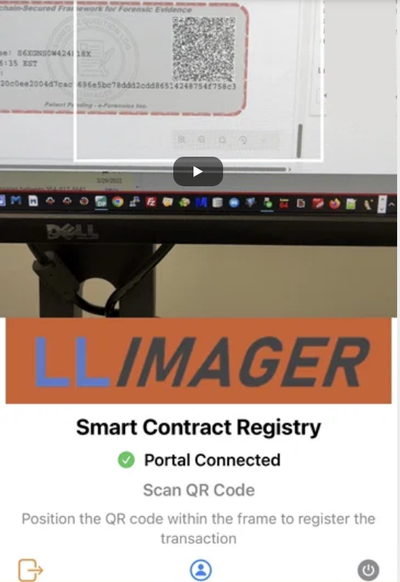
Demonstrating How LLIMAGER UNIVERSAL & LLSmartVerify Mitigate E01 Foundational Deficiencies
Read More
How to obtain the USB SSD drive details needed for user supplied devices that will store LLIMAGER. Required to generate the license key file.
Read More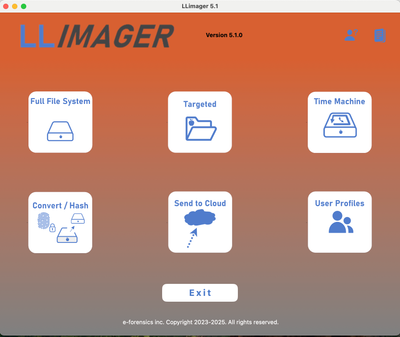
LLIMAGER v5.x user manual.
Read More



Demo Videos
Blog

MacOS Extended Attributes Extended attributes are like hidden gems within your files on macOS. These metadata components can be unique to specific files and file types, providing additional context and functionality.
Read More
System Integrity Protection (SIP), also known as rootless, is a critical security feature in macOS. It prevents unauthorized modifications to essential system folders, ensuring the integrity of the operating system. By restricting access and marking certain files as immutable, SIP enhances overall system security. Developers can temporarily disable SIP for specific tasks, but re-enabling it promptly is crucial to maintain protection against malicious code.
Read More
While unallocated space has traditionally been a treasure trove for digital investigators, the landscape has shifted significantly with the advent of Solid State Drives (SSDs). Unallocated space is no longer the goldmine it once was
Read MoreTrust Center

LLIMAGER End User License Agreement
LLIMAGER™ EULA

LLIMAGER Companion Mobile App End User License Agreement
LLIMAGER™ Companion Mobile App EULA

LLSmartVerify End User License Agreement
LLSmartVerify End User License Agreement EULA

LLSmartVerify Privacy Policy
LLSmartVerify Privacy Policy

LLIMAGER Privacy Policy
LLIMAGER Privacy Policy

LLIMAGER Companion Mobile App Privacy Policy
LLIMAGER Companion Mobile App Privacy Policy

Trust Center
LLIMAGER End User License Agreement
LLIMAGER™ EULA
LLIMAGER Companion Mobile App End User License Agreement
LLIMAGER™ Companion Mobile App EULA
LLSmartVerify End User License Agreement
LLSmartVerify End User License Agreement EULA
LLSmartVerify Privacy Policy
LLSmartVerify Privacy Policy
LLIMAGER Privacy Policy
LLIMAGER Privacy Policy
LLIMAGER Companion Mobile App Privacy Policy
LLIMAGER Companion Mobile App Privacy Policy
Contact
- 2000 South Dixie Highway #206, Miami, Florida 33133
- +1-305-667-4603 - e-Forensics Inc
- sales@e-forensicsinc.com
- 9:00AM to 6:00PM M-F (Eastern)